 1 / 12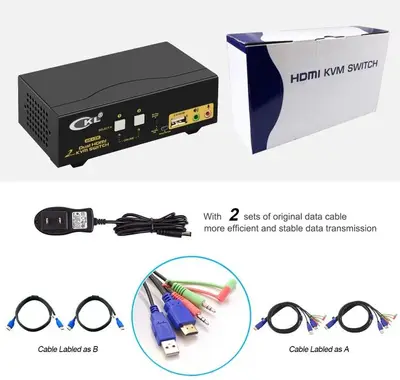


CKL CKL-922HUA 2-Port HDMI KVM Switch, Dual Monitor, 4K 30Hz
$110
New, sealed
Dual-monitor extended display KVM switch. Brand new in box.
More details
Brand new in box
Box Contents:
1* 2 port dual monitor HDMI KVM
2* dedicated kvm cable A 4.92 ft
2* standard HDMI cable B 4.92 ft
1* DV 5V power adapter (US plug)
1* User Manual in English
CKL-922HUA 2 Port USB KVM Switch HDMI Dual Monitor Extended Display requires 2 video connections from each computer and laptop with cable A and cable B included. Make sure your computers / laptops have 2 video interfaces and support duplicated display (verify this by connecting your device to 2 monitors directly), and be aware of adapters you might need for set-up before ordering.
Perfect Set-up:
Dual HDMI output devices + 2 HDMI monitors. No adapters needed
Good Set-up:
HDMI + VGA or DVI or DisplayPort devices + 2 MDMI monitors. Reliable adapters needed
Note: Do not use adapters simultaneously on both computer side and monitor side for a same video chain.
How to Install:
1. Connect the end with USB, audio and HDMI of Cable A to computer side, the other end to IN 1 A at KVM side.
2. Connect Cable B from your computer to IN 1 B of the Switch (use adapter here if needed);
3. Repeat step 1 & 2 to connect other devices to correspondent KVM ports;
4. Plug your mouse and keyboard to USB mouse and keyboard port on back panel;
5. Connect your Monitors to HDMI OUT A & B;
6. Plug in your speaker or microphone if needed;
7. Power on the switch and boot all devices;
8. Set computer display mode to Extended
How to Switch:
1. Keyboard Hotkey
2. Mouse click
3. Push button
4. Auto Scan
Tested and fully working. Pickup in San Diego. Cash only.
More in Keyboards, Mice & Monitors

Quntis Monitor Light Bar Focus, 15.7 in, Black, Eye-Caring
$40
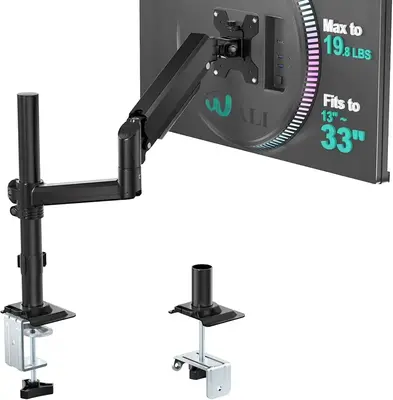
WALI Single Monitor Desk Arm for 13-33 in Screens, VESA, up to 19.8 lb
$40
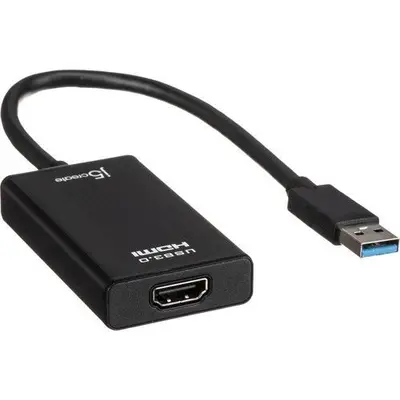
j5create USB 3.1 Gen 1 HDMI Display Adapter
$20

USB-C to Dual 4K DisplayPort Splitter Adapter, 4K 60Hz
$35

2.4GHz Mini Wireless Keyboard with Touchpad, Rechargeable
$20

T16 2.4GHz Wireless Mini Keyboard with Touchpad, USB Receiver
$20

11-in-1 USB-C Docking Station for 3 Monitors, Dual HDMI and DP 4K 60Hz
$50

Samsung 32" UJ59 4K UHD Monitor, VA Panel, HDMI and DisplayPort
$160